






Halo
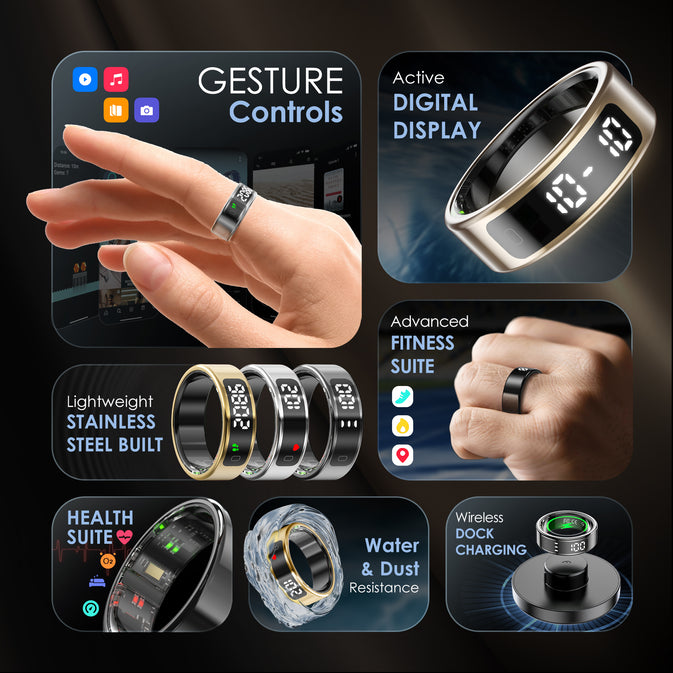
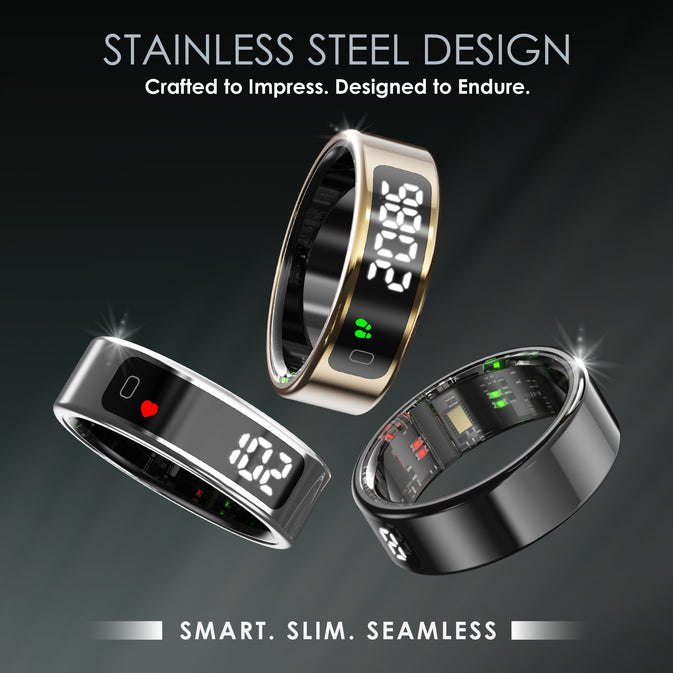
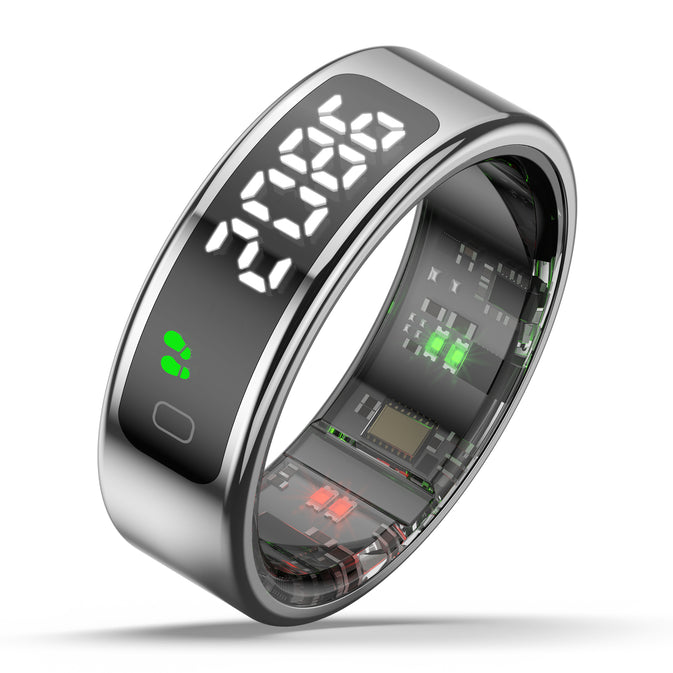
Digital Display
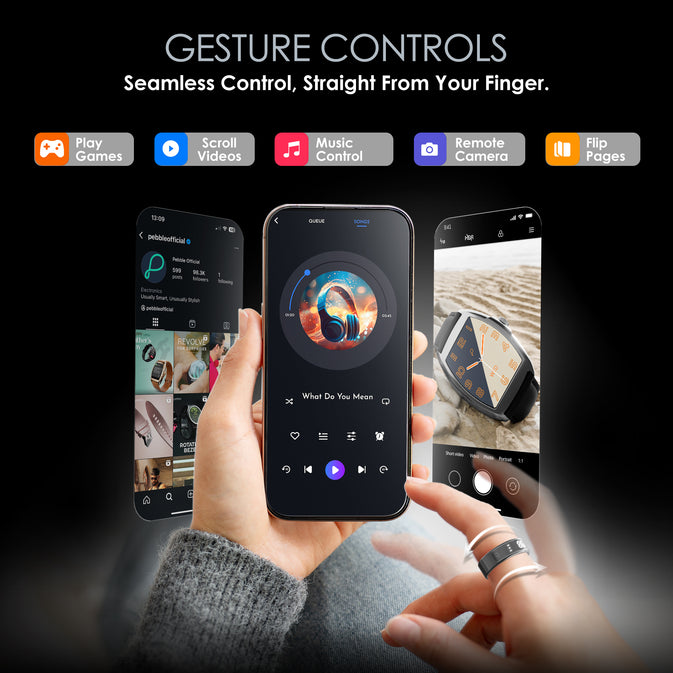
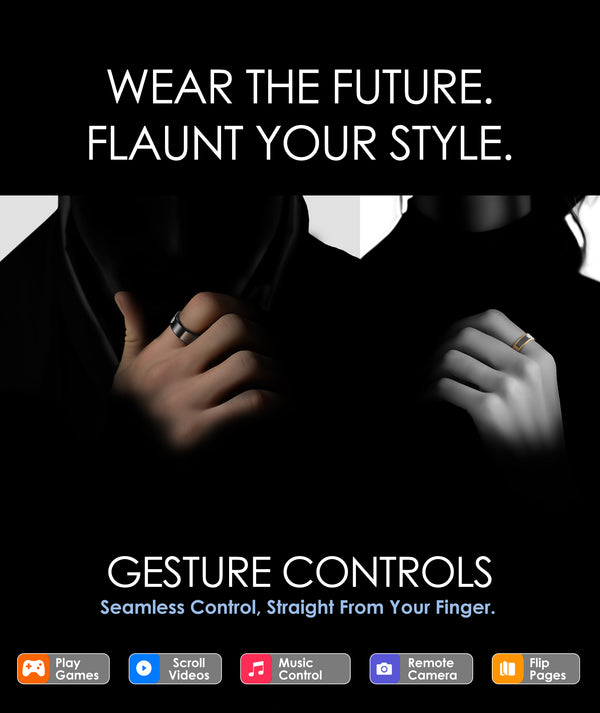
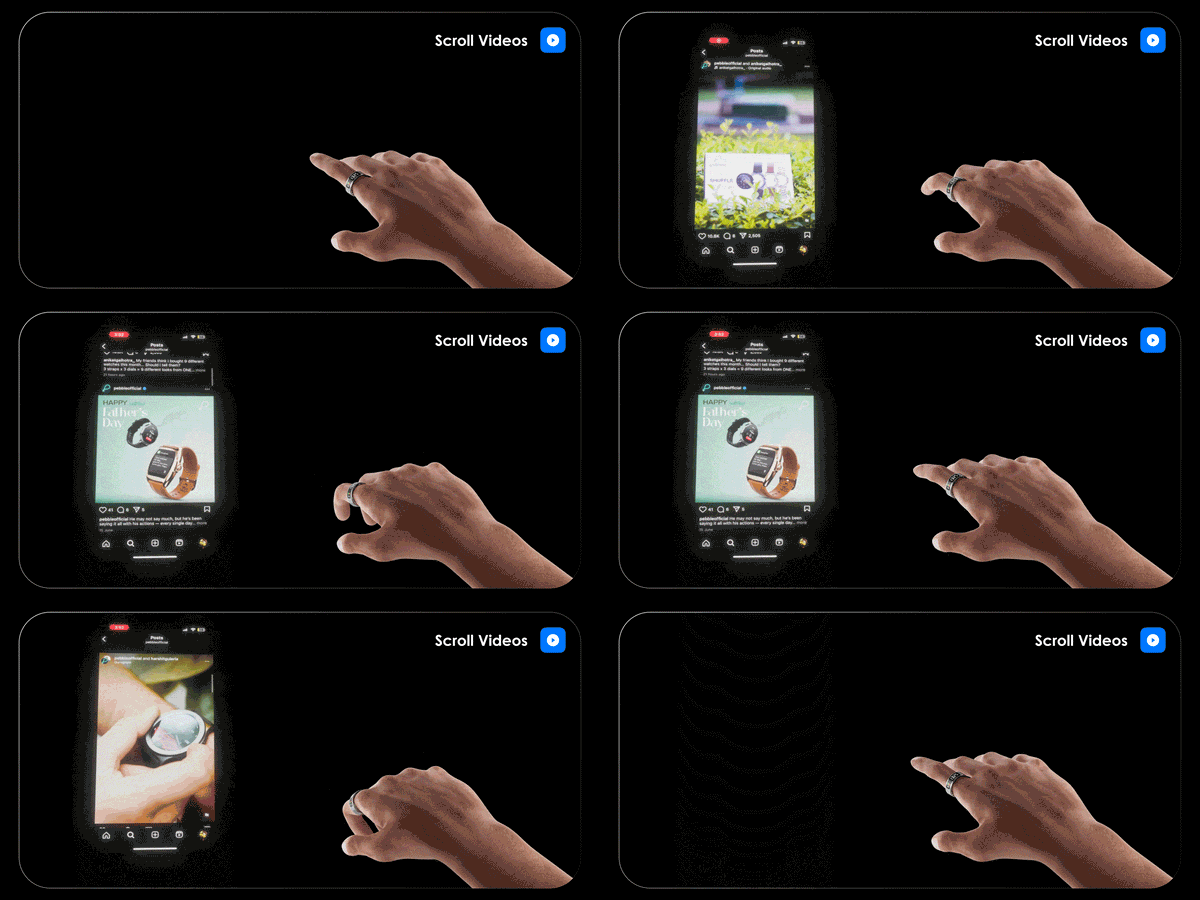
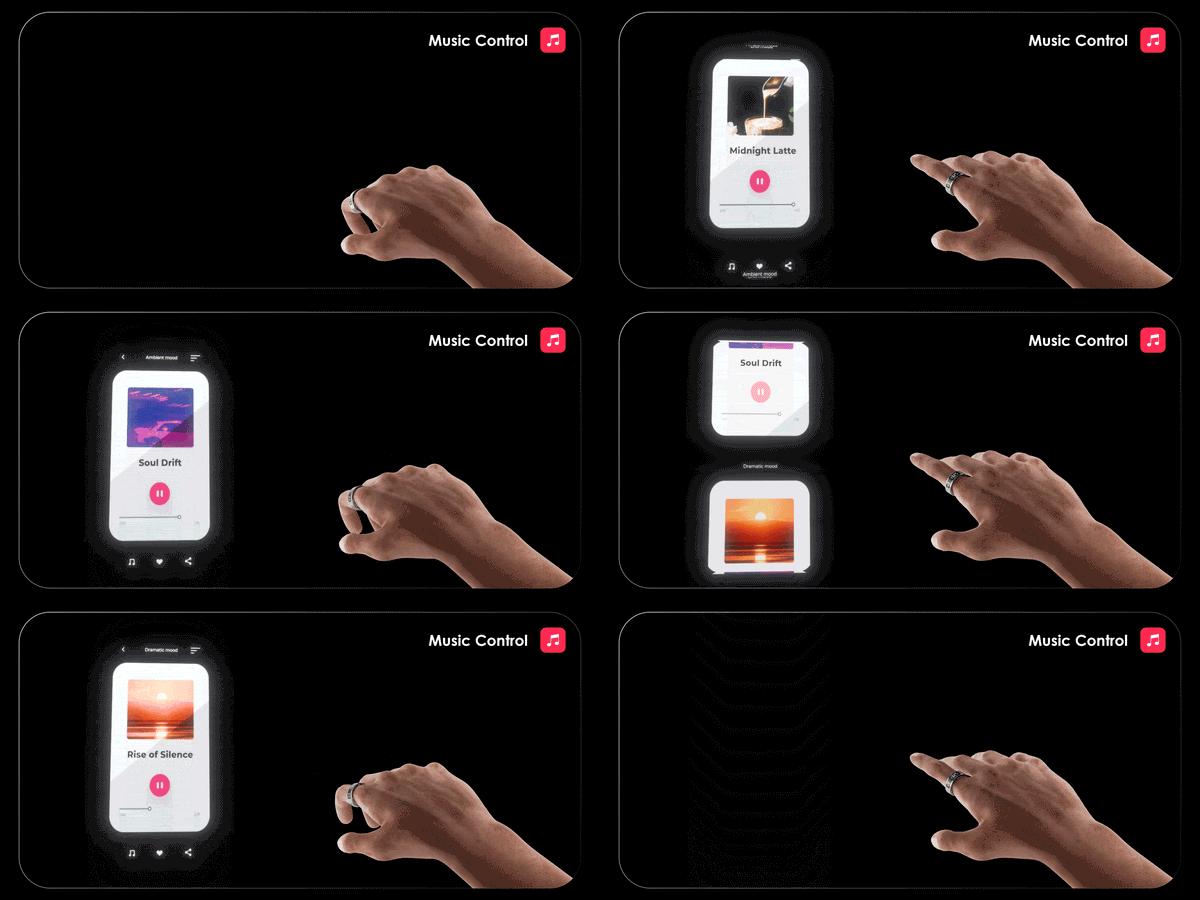
Gesture Control
Remote camera
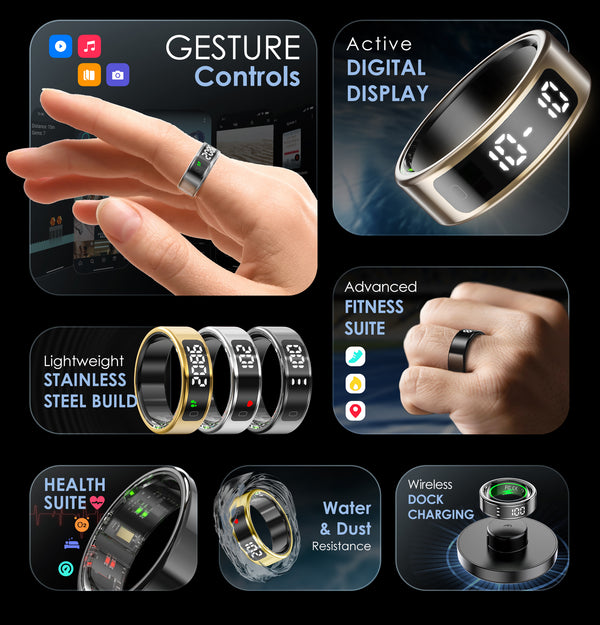
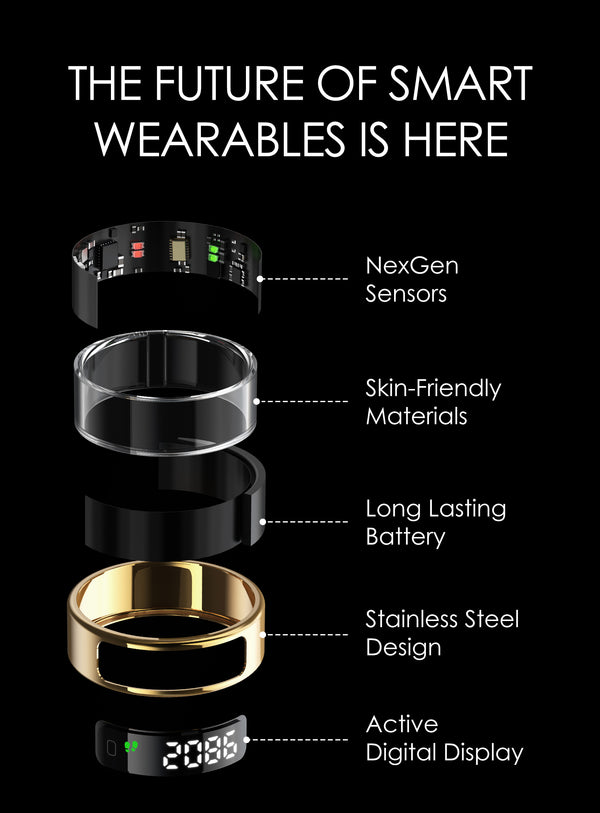
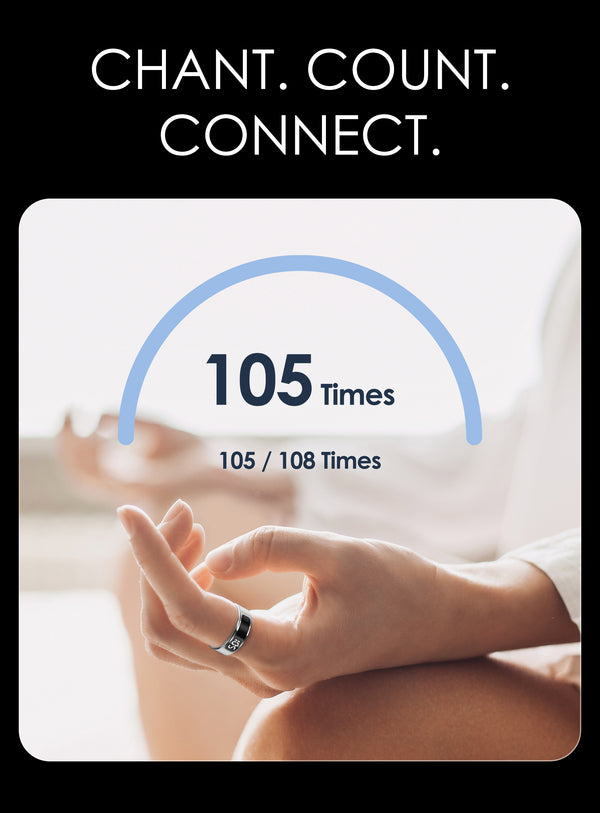
Digital Display, Gesture Control, Stainless steel Design, Sleep & Health monitoring, Activity Tracking & Chanting Counter
- Regular price
-
₹ 3,499.00
- Sale price
-
₹ 3,499.00
- Regular price
-
M.R.P.:₹ 7,999.00
(57% Off)
Inclusive of all taxes
Free Shipping.
-
Only 5 items left in stock!
Notify Me when Back in Stock
Couldn't load pickup availability
 Free Shipping
 1 Year Warranty
 Secure Checkout
Bulk Order Query





Halo
- Regular price
-
₹ 3,499.00
- Sale price
-
₹ 3,499.00
- Regular price
-
M.R.P.:₹ 7,999.00
57% Off
Black / 7

Specifications
Product Information
- PFB02 Halo
- Generic Product Name : Smart Ring
- Compatible OS : Android & IOS
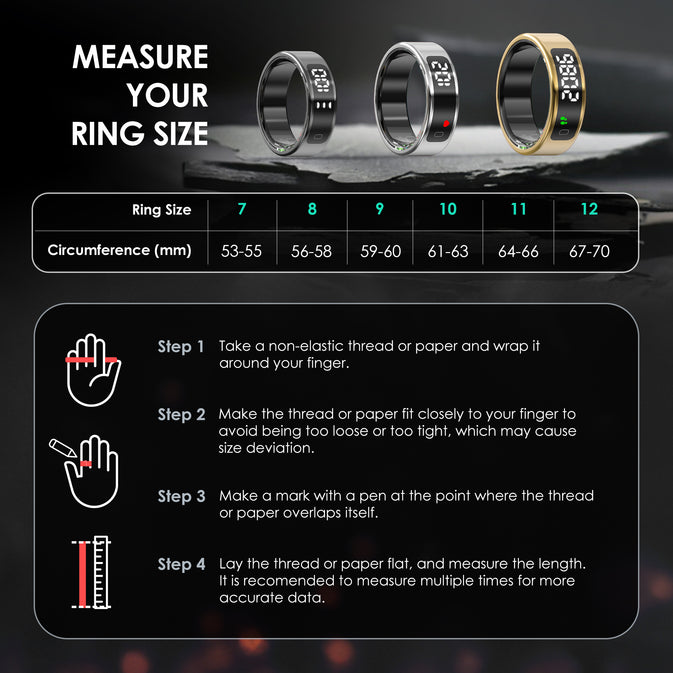
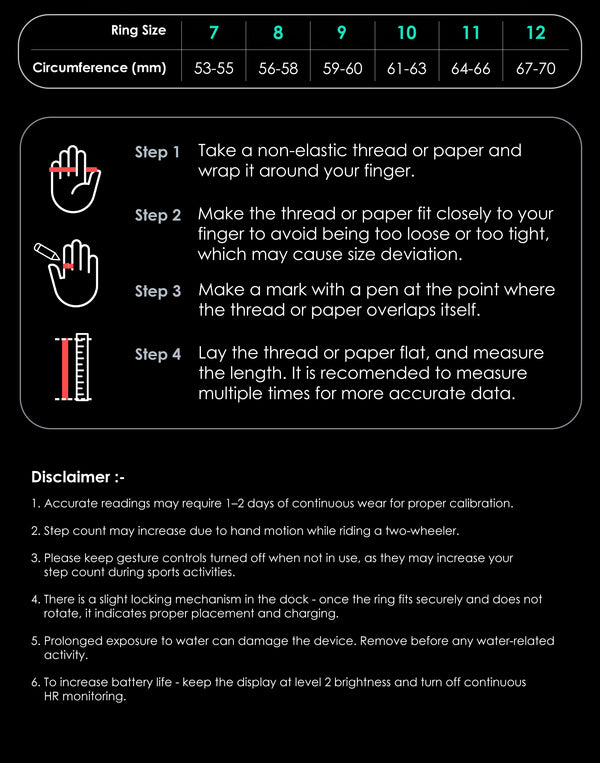
- Ring Size : 7,8,9,10,11 & 12
- Type : Smart Ring
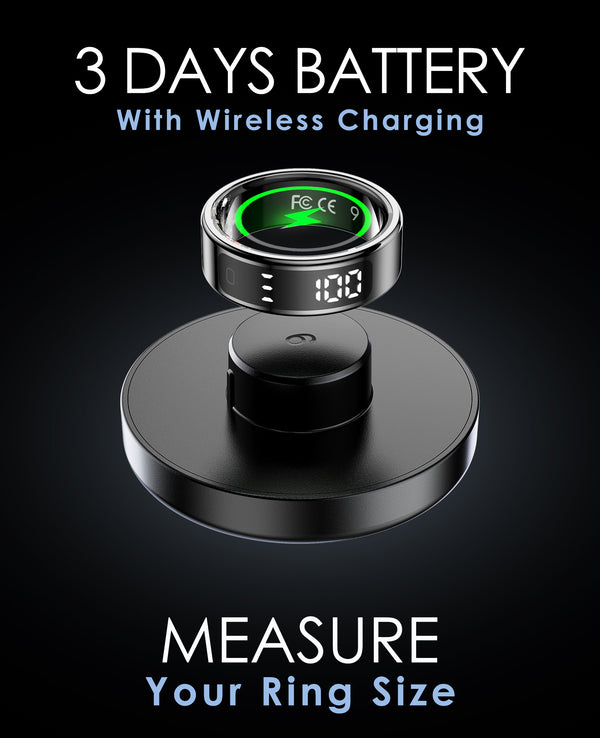
- Charging : Wireless Charging
- Bluetooth Version : 5.2
- Charging Time : 120 Min
- Water Resistance : Yes
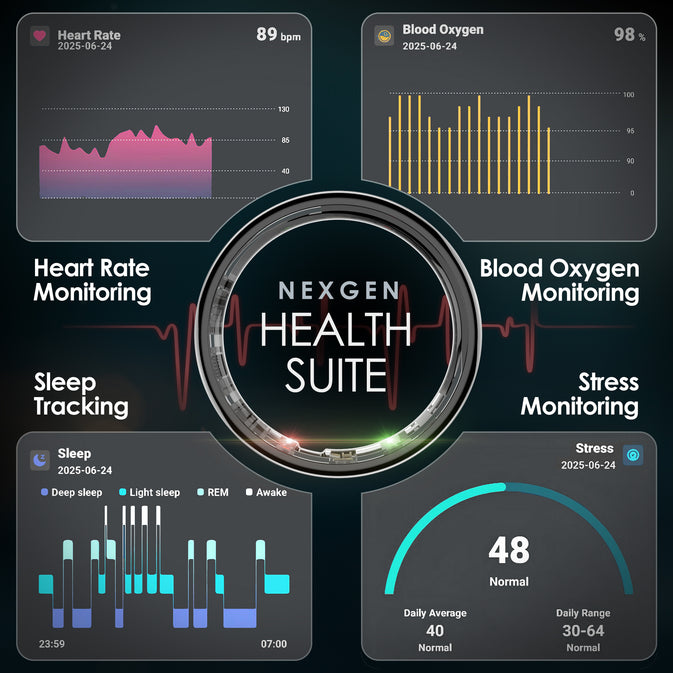
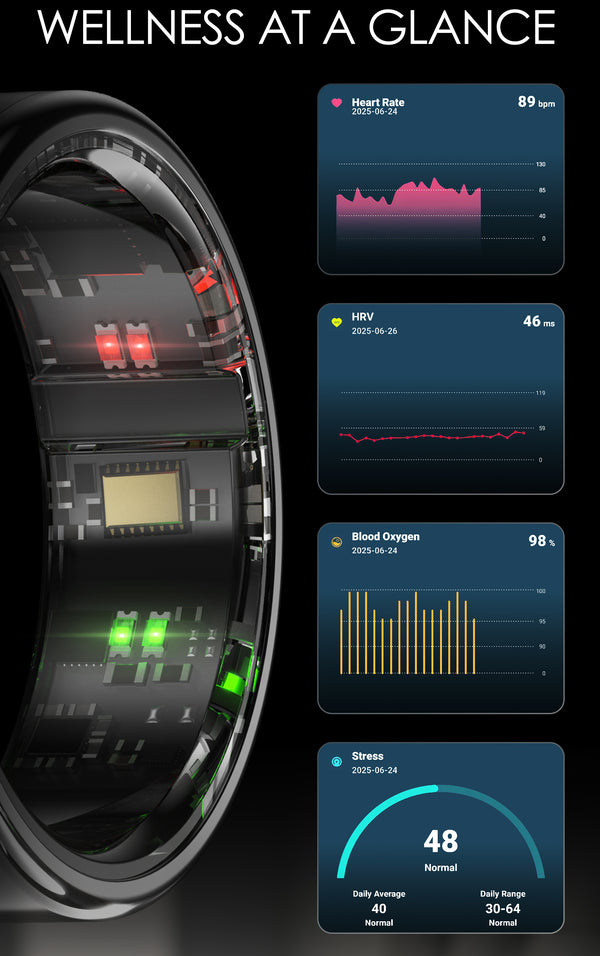
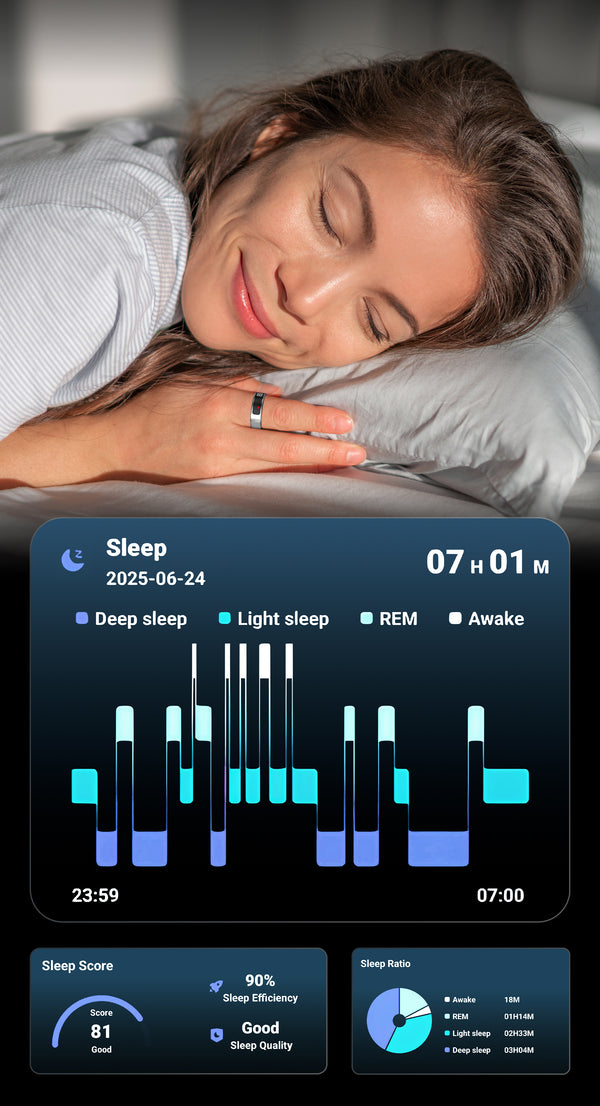
- Health : Sleep Monitoring, Heart Rate, SpO2, Stress monitor & HRV
- Battery Average Life : 7 Days ( Standby ) With Usage 3 to 4 Days
- Sports Mode : Multiple Sports Mode
- Dimension : 10*5.8*10 cm
- Weight : 190g
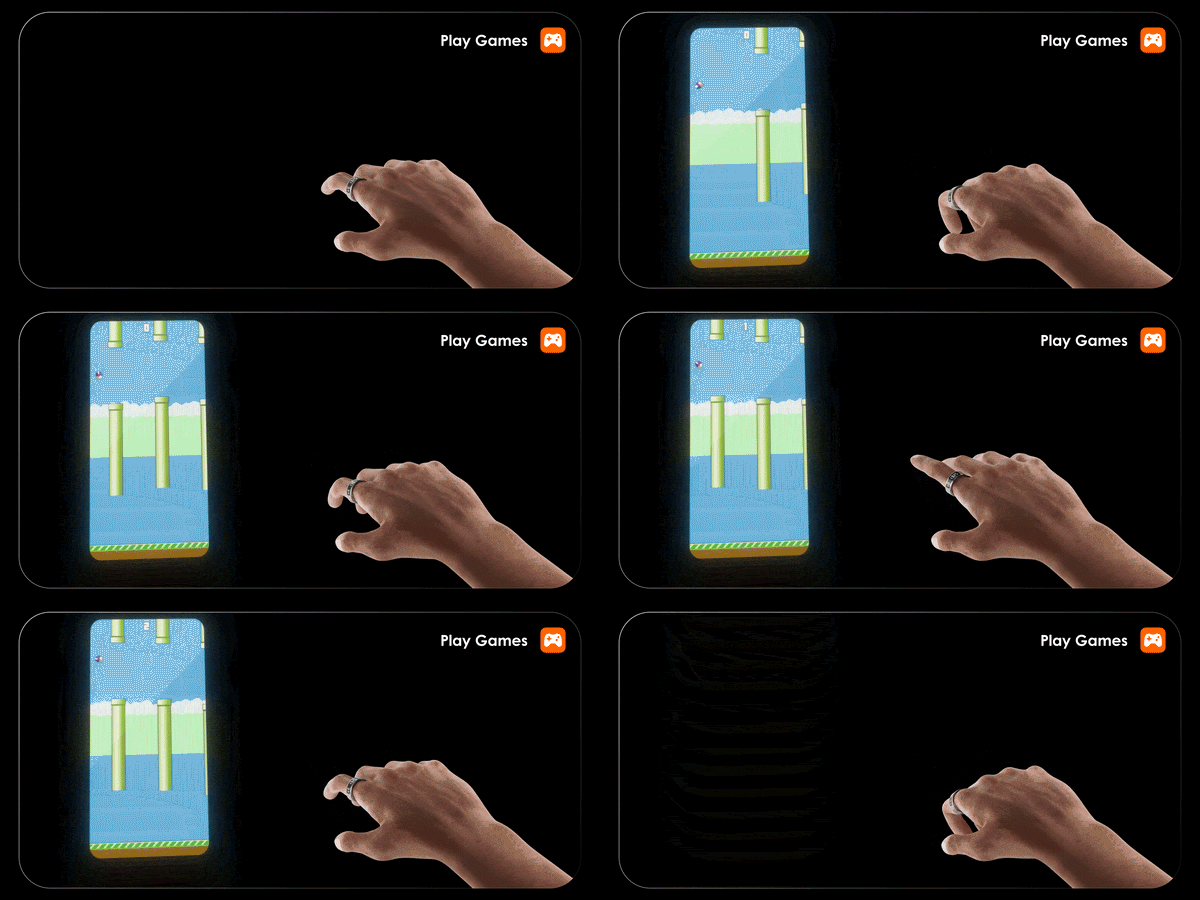
- Other Features : Smart Touch Control, Stainless Steel Built, Gesture Games, Remote Camera
- Country of Origin : China
- Imported & Marketed By: SRK Powertech Pvt Ltd A-12, Hoseiry Complex Phase-2, Noida,UP-201305
SALES PACKAGE
- 1
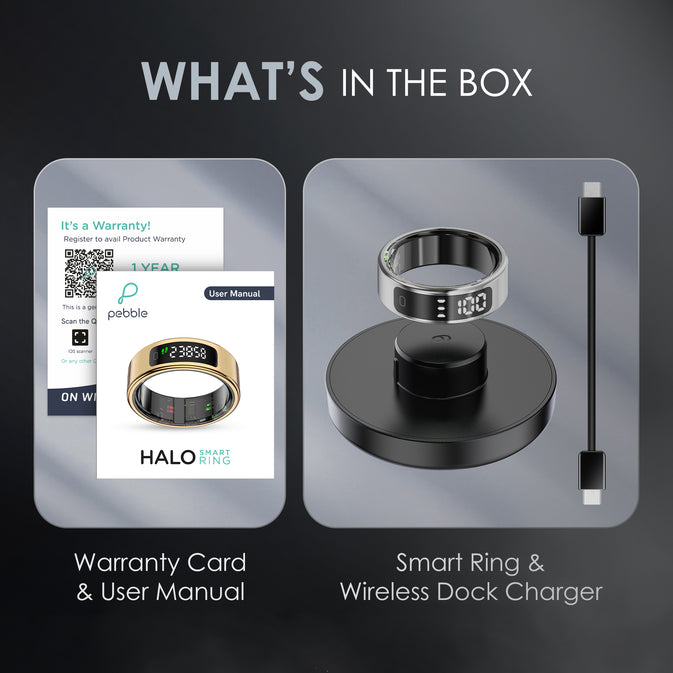
- Inside the Box: 1N Smart Ring, 1N Wireless Charger, 1N Cable, 1N Warranty Card, 1N User Manual
CUSTOMER CARE & WARRANTY
- It comes with 12 months Warranty. To claim the Warranty, kindly register the product on pebblecart.com within 10 days of your purchase.
- Covered in Warranty: Manufacturing Defects
- Not Covered in Warranty: Physical Damage, Water Damage
- Domestic Warranty: 1-Year Warranty
- Customer Care: support@pebblecart.com/+91 8800271651 for all technical support.
Download User Manual
For easy access to product information and get the most out of your product.
FAQs
How do I connect the Pebble Halo Ring with my phone?
Why does my Pebble Halo Ring count steps while driving, biking, or using gesture controls?
How can I use gesture controls on the Pebble Halo Smart Ring?
How can I activate gesture controls on the Pebble Halo Smart Ring?
What does the “E-Book Gesture” setting do?
What happens when the “Short Video Gesture” is enabled?