Imported & Marketed By: SRK Powertech Pvt Ltd. 1001, Tower-B, Advant Navis Park, Noida, UP 201305
Sales Package
Net Quantity : 1
Inside the Box: 1N Keyboard, 1N Warranty Card, 1N User Manual
CUSTOMER CARE & WARRANTY
Policy: It comes with 12 months of Replacement Guarantee. To claim the Warranty, kindly register the product on pebblecart.com within 10 days of your purchase.
Covered in Warranty: Manufacturing Defects
Not Covered in Warranty: Physical Damage, Water Damage
Domestic Warranty: 1-Year Replacement Guarantee
Customer Care: support@pebblecart.com/+91 8800271651 for all technical support.
FAQs
How to connect the keyboard?
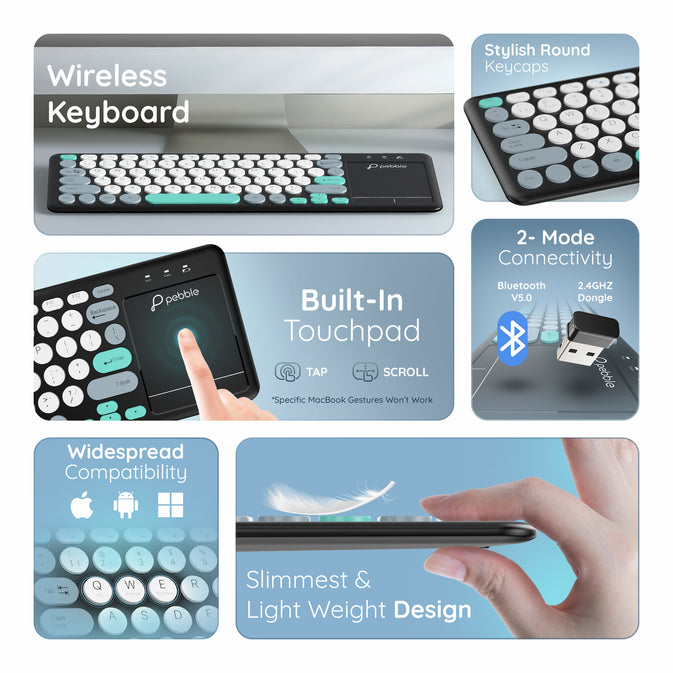
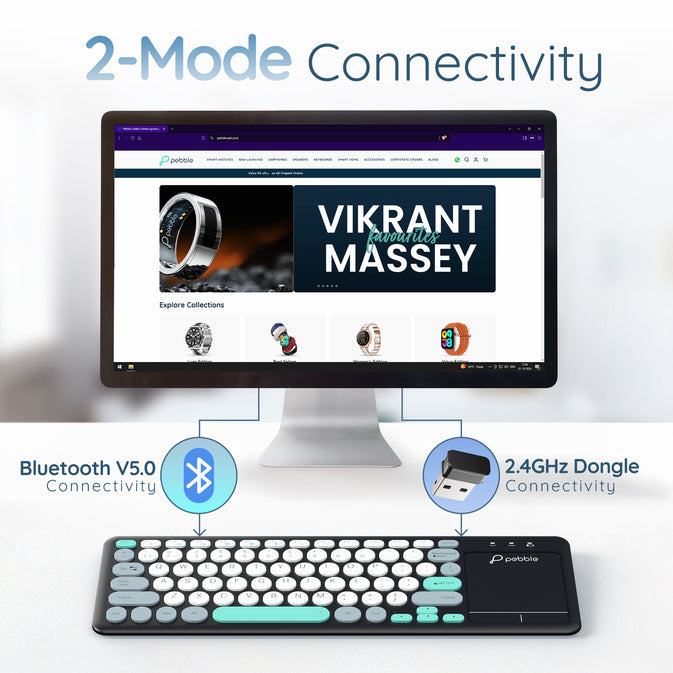
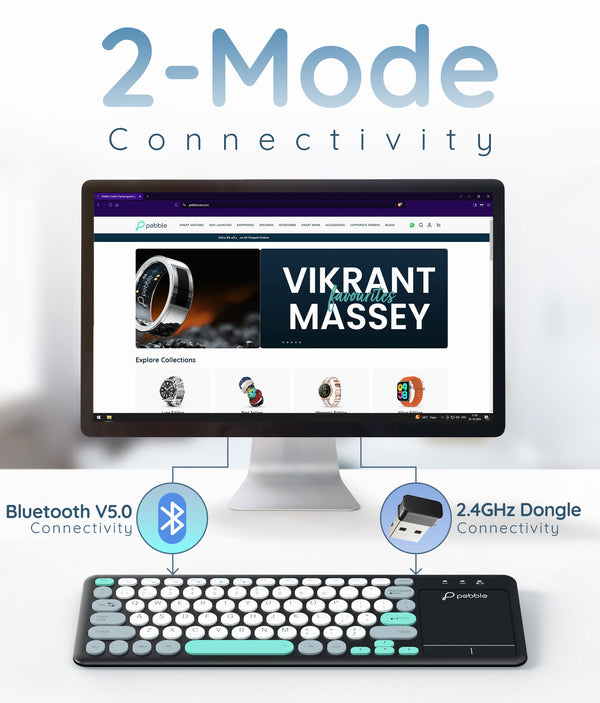
You can connect Keyboard in two ways:
Using Bluetooth:
Step 1: Switch on the power button located on the backside of the keyboard.
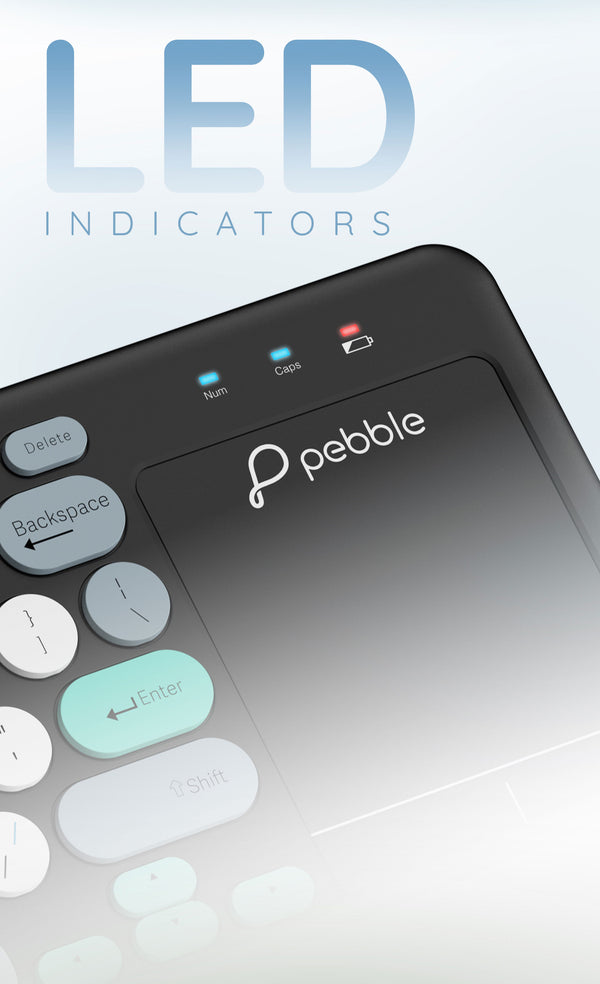
Step 2: Short press Fn + 1 (with Bluetooth logo) keys, the keyboard will switch to Bluetooth mode. A red light on the top right corner will blink once as a mode change confirmation. Please note that If you are already in Bluetooth mode, the red light won’t blink, even after pressing this key combination.
Step 3: Press Fn + C keys. The red light will blink continuously on the top right corner, indicating that the keyboard has entered Bluetooth pairing mode. It will stay in this mode for 60 seconds.
Step 4: Search for PBL MagicPad on your device and pair the keyboard with your device.
Using USB Dongle Mode Pairing:
Step 1: Switch on the power button located on the backside of the keyboard.
Step 2: Short press Fn + 2 (with 2.4G marking) keys, the keyboard will turn to Dongle mode. A red light on the top right corner will blink once as a mode change confirmation. Please note that If you are already in dongle mode, the red light wont blink, even after pressing this key combination.
Step 3: Plug in the dongle to your device, and the keyboard will connect automatically.
How do I switch between Bluetooth to Dongle mode?
The keyboard can shift between two wireless modes: Bluetooth and USB Dongle (Red light on the top right corner will blink once as mode change confirmation):
Short press Fn + 1 (with Bluetooth logo) switch the keyboard to Bluetooth mode.
Short press Fn + 2 (with 2.4G marking) to switch the USB Dongle mode. Make sure the dongle is plugged into the device in use.
How do I switch between different OS?
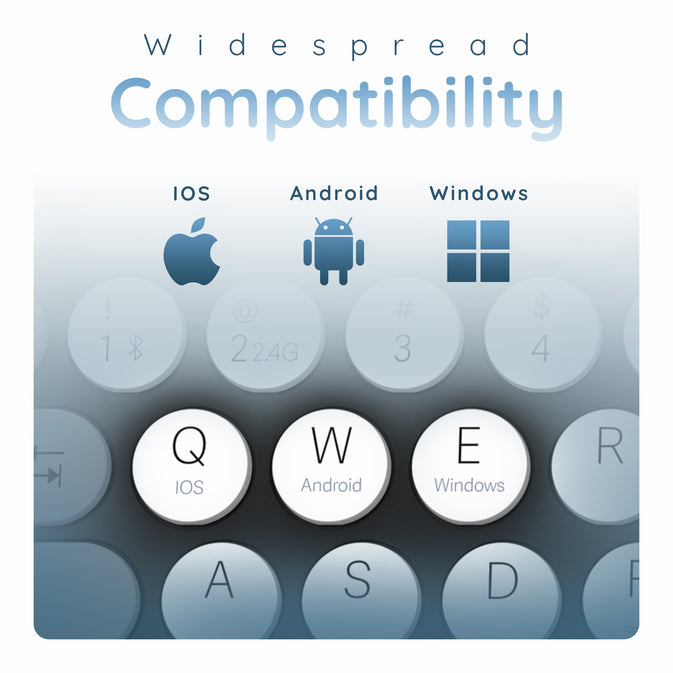
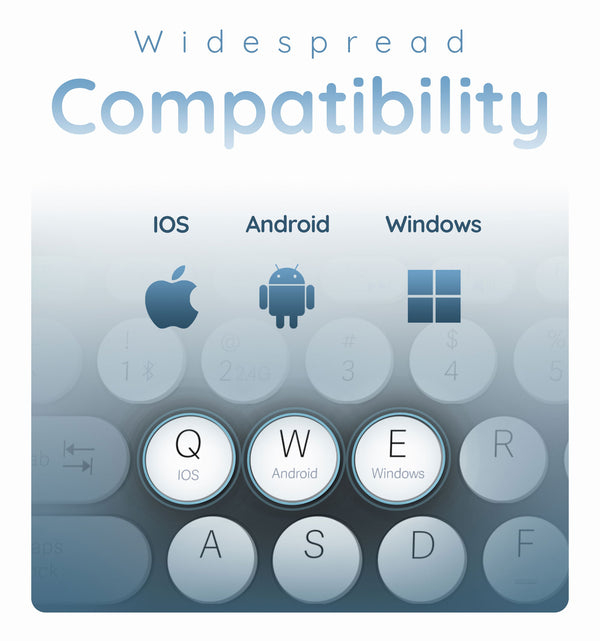
The keyboard can switch between 3 OS i.e: iOS, Windows & Android:
Fn + Q (iOS) to make the keyword compatible with an iOS device.
Fn + W (Android) to make the keyword compatible with an Android device.
Fn + E (Windows) to make the keyword compatible with a Windows device.
What should I do if the keyboard is not connecting via Bluetooth?
If you're having trouble with Bluetooth, try the following steps:
Ensure the keyboard is in Bluetooth mode.
Check that your device’s Bluetooth is turned on.
Forget the keyboard from your device’s Bluetooth settings, then re - pair it.
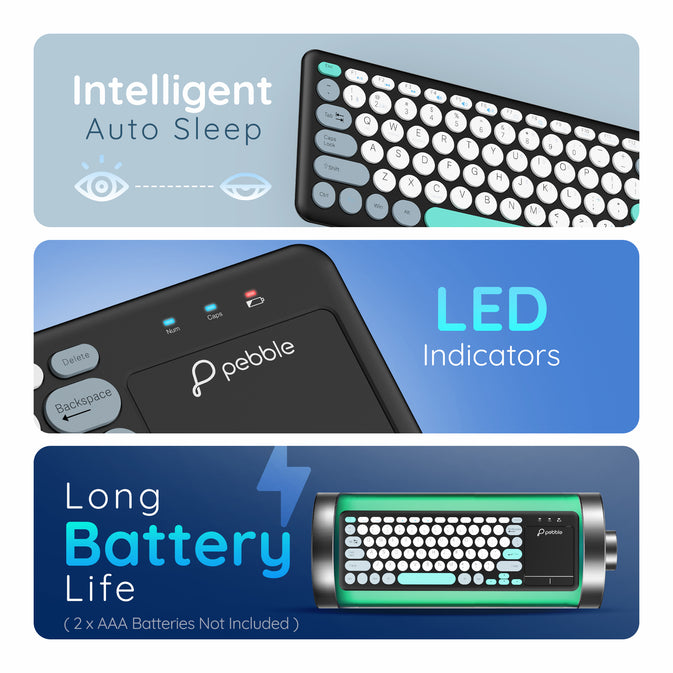
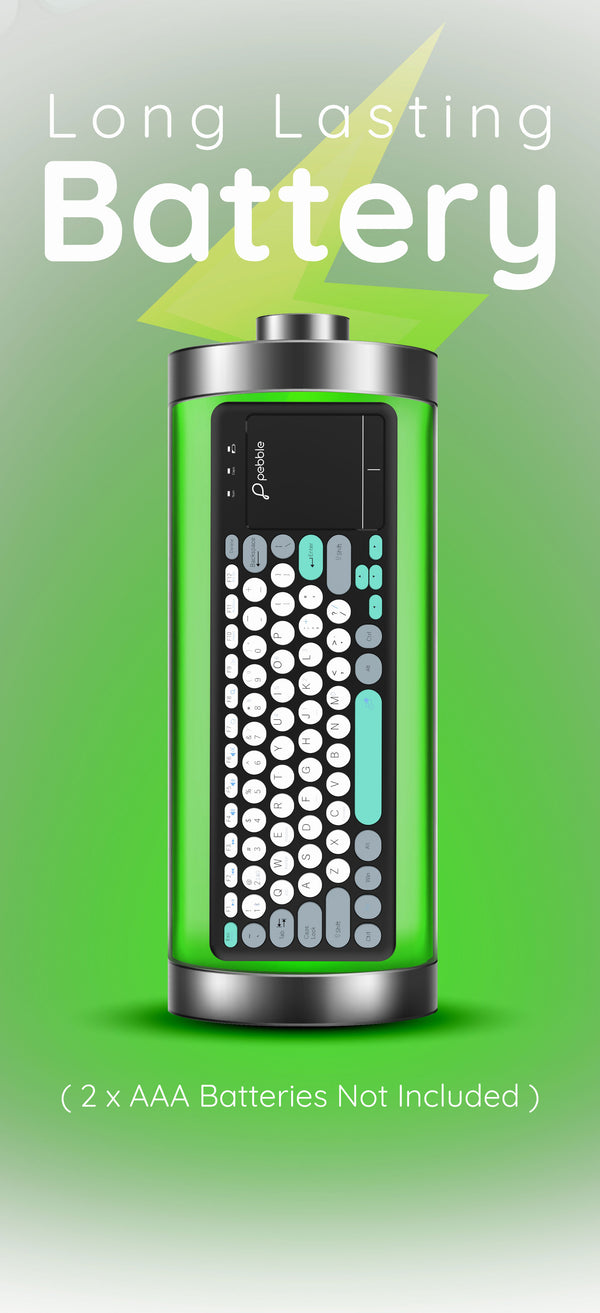
Replace the AAA batteries if they're low on power.
Restart both the keyboard and your device.
Customer Reviews
Overall rating: 3.8 / 5 from 8 reviews.
I recently started using the Pebble Magic Keyboard and overall, I find it quite user-friendly. It’s lightweight, sleek, and pleasant to use. However, I’ve noticed one issue that could be improved:
Lack of Structural Support Beneath the Spacebar:
When typing, particularly when pressing the spacebar, the keyboard flexes slightly. It feels like there’s no internal support beneath or around the spacebar area, which causes the plastic surface to bend. This affects the key travel and typing experience, especially during fast or frequent typing. Given the lightweight plastic design, I suggest reinforcing this area to improve durability and typing accuracy.
I appreciate the overall design and ease of use, and I hope this feedback helps with future improvements.
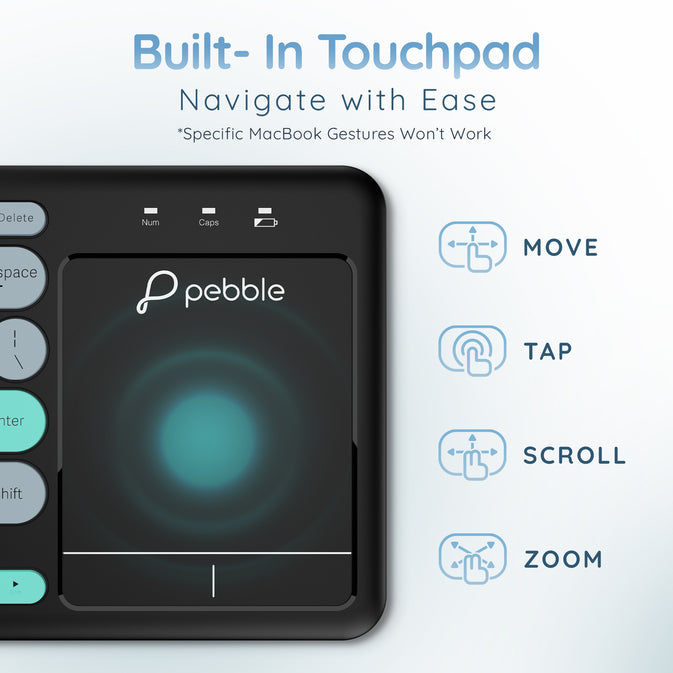
Key board quality is okay okay but it’s slim. Don’t take the keyboard for MacBook it doesn’t support MacBooks some times annoying popup comes in MacBook. And also three finger gesture support is not there for MacBook. I took it thinking it’s there but it is not there. So I request to clearly mention such that people like me don’t take it.
2.4G not having any marking for pebbles hard to use with multiple dongles and instruction manual is so small unable to read tried using manual to connect keyboard not connected after reading in website my keyboard got connected
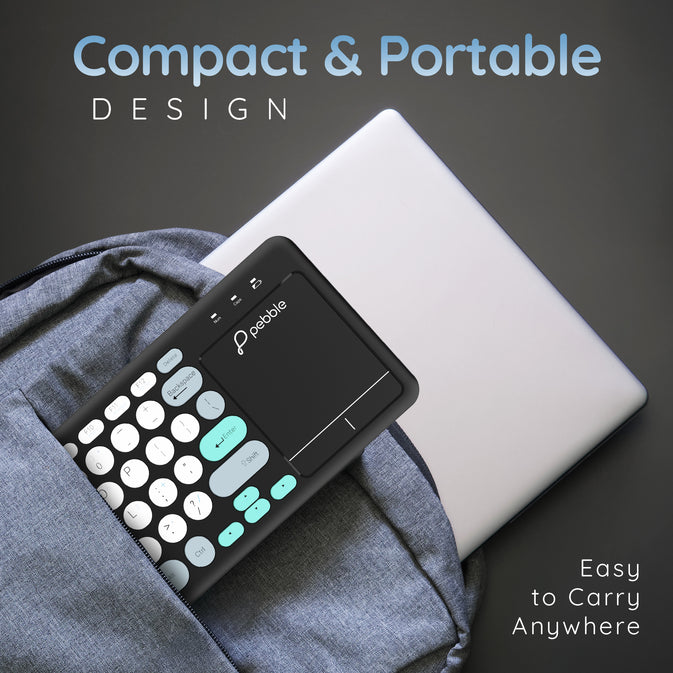
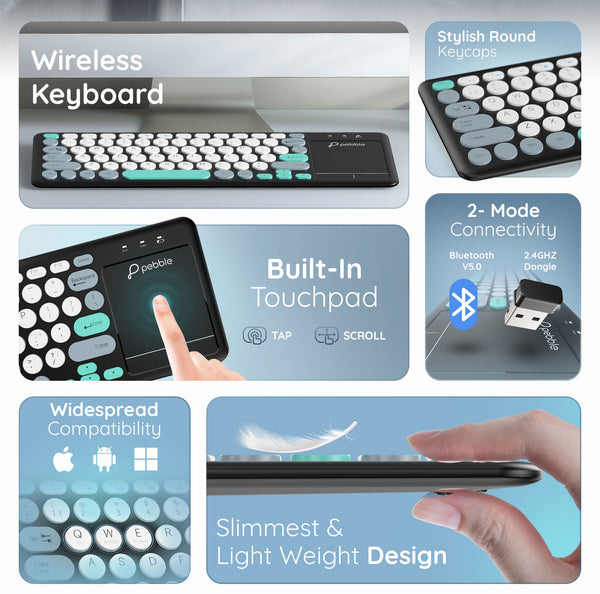
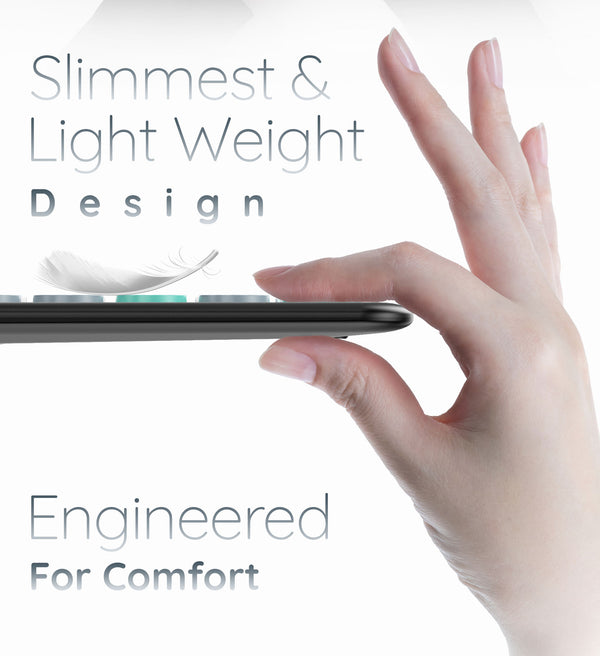
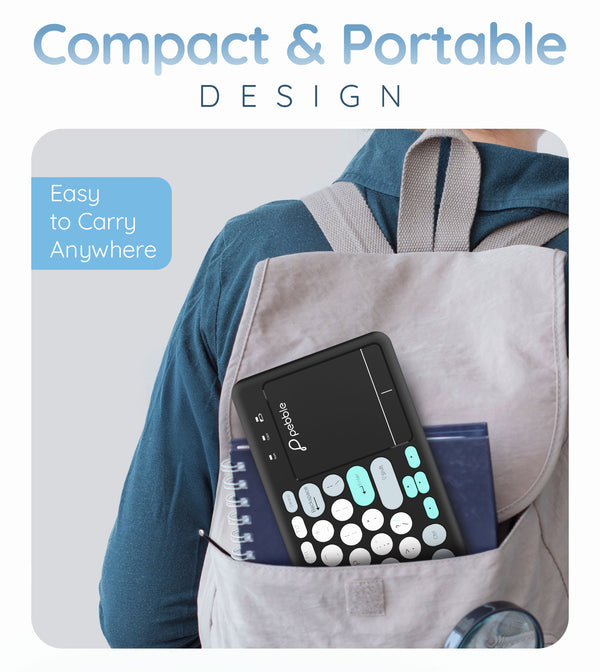
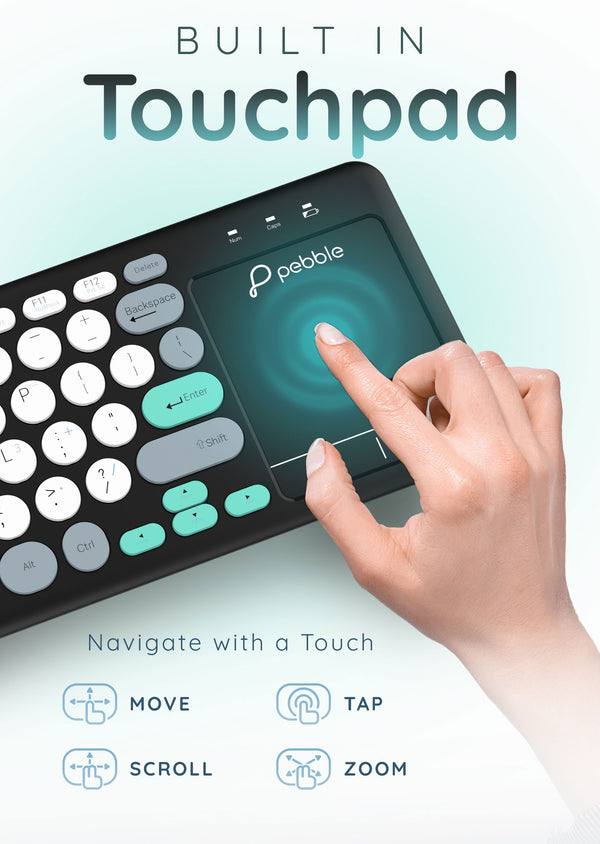
The keyboard is slim, sleek, and portable, making it easy to carry around. The touchpad works well, and it pairs with all devices as mentioned in the product description, including Android, iOS, and PCs via dongle.
Pros:
Slim and portable design.
Touchpad functionality is smooth and responsive.
Compatible with a wide range of devices (Android, iOS, PC).
Cons:
Does not support simultaneous connections with Android and iOS.
Switching between devices requires fresh pairing, which can overwrite existing connections.
No option to switch directly between two Bluetooth devices; only between laptop dongle and Bluetooth.
Frequent re-pairing may disrupt workflows.
the review i shared is not visible, sending again
PROS:
Looks are good
Compact design
CONS
keys need to be pressed harder sometimes
Spacebar always needs to be pressed extra hard
the buttons on the touch pad also are movement sensitive, so when i press the keys, the curser moves away, and need to be overcautious here
thouch pad is not as a smmoth as a laptop touchpad, and is rough
Touch pad lacks precision
Touch pad is too close to the keys, so while typing, the cursor moves away and need to retype . forces a lot of need to correct the typing
Overall, no easy to use